
What WebSmart actually is
WebSmart is the SMCCD student records system where you manage your entire academic lifecycle. You register for classes, check your grades, order official transcripts, and submit financial aid documents—all from one interface. It is the transactional heart of your account at College of San Mateo, Cañada College, and Skyline College.
You do not need a separate username. WebSmart authenticates through the mySMCCD Portal. When you visit my.smccd.edu and sign in with your SMCCD email and password, you land on a dashboard. Clicking the WebSmart tile passes your secure session directly to the records system. There is no second login screen.
What makes WebSmart different from a simple student portal
Think of WebSmart as the back-end database for your student record. The mySMCCD Portal is the front door that connects you to it. WebSmart holds your actual enrollment data, your fee balance, your academic history. Every add or drop you perform writes directly to the district’s live system.
In 2026, WebSmart remains the authoritative source for SMCCD student data. The interface has not been replaced or deprecated. The district continues to route course registration, transcript requests, and financial aid verification through it. Faculty and staff also use WebSmart to view class rosters and submit grades.
What you can touch in WebSmart right now
The platform gives you direct control over time-sensitive tasks:
- Registration: Add or drop classes during your assigned enrollment window. WebSmart checks prerequisites in real time and prevents you from enrolling in a course that requires placement you have not satisfied.
- Academic records: View unofficial transcripts instantly, order official ones, and check final grades as soon as faculty submit them.
- Financial aid: Accept or decline award offers, submit verification documents, and monitor disbursement dates.
- Account holds: See exactly which holds block your registration and what office to contact to clear them.
The system works best on a desktop browser. A mobile view exists but may truncate some data tables. If you are waiting for an enrollment appointment, log in before your time slot and have the course reference numbers ready. The actual add happens fast once you submit.
Who can use WebSmart
WebSmart is your gateway if you belong to any of the three colleges in the San Mateo County Community College District. That means every current student at College of San Mateo, Skyline College, and Cañada College has an account. The system is not available to the general public or to students outside SMCCD.

When do newly admitted students get access?
You do not receive WebSmart access the moment you click “apply.” The college creates your account after you complete the full admissions process and receive your student identification number. This usually happens within a few business days of submitting all required paperwork. Watch for an email from the admissions office with your G number and setup instructions.
Is WebSmart just for students?
No. Faculty and staff log in to WebSmart for different reasons. Instructors use it to view class rosters, submit grades, and check their teaching schedules. Administrative staff rely on it for enrollment reports and student record management. But the features you see as a student are entirely different from what they see — your view focuses on registration, financial aid, and academic records.
Alumni lose full access after leaving the district, but they can still order official transcripts through a limited WebSmart portal. Continuing education students enrolled in non-credit programs also qualify if their application has been processed.
How to log in to WebSmart
Go to my.smccd.edu or find the WebSmart link on the SMCCD website. The portal uses the same credentials for WebSmart and the mySMCCD Portal, so you only need one set of login details.
What credentials do I use?
Your username is typically the first part of your college email address — everything before the @ symbol. Use the password you created when you activated your mySMCCD account. If you have not logged in before, you must activate your account first.
How do first-time users activate an account?
Look for the “Activate Account” or “First Time User” option on the login screen. The system will ask for two pieces of information from your acceptance letter: your student ID number (a G-number) and a temporary activation PIN. You will then set a permanent password and set up security questions. Choose a strong password you do not use elsewhere.
After activation, return to the login page and enter your new credentials. The system may prompt you to complete multi-factor authentication. Keep your phone nearby to approve the sign-in request. Once you are in, bookmark the login page — you will return here for registration, transcripts, and financial aid every semester.
Key tasks you can complete in WebSmart
Once you are logged in, WebSmart becomes your control center for enrollment, academics, and money. Most students use it for four groups of tasks: registration, records, financial aid, and payments.
How do I add or drop classes in WebSmart?
Go to the Student menu, then Registration. Use Add/Drop Classes during the open enrollment window for your priority date. Check your registration time under Check Registration Status first. After you submit, view your weekly schedule under My Class Schedule to confirm the change saved.
Where do I see grades and order transcripts?
Under Student Records, choose View Grades to see term and cumulative results. To send an official transcript to another college or employer, select Request Official Transcript. WebSmart connects to the National Student Clearinghouse for secure electronic delivery. You can also run a Degree Audit to see which requirements you have completed and which remain, as defined in the Skyline College catalog.
How do I manage financial aid and payments?
Use the Financial Aid menu to review your FAFSA application status and award details for the academic year. Accept or decline offers before the stated deadline. For billing, the Student Accounts area shows your current balance, account holds, and payment plan options. You can pay tuition by card or set up an installment plan that spreads the cost across the term.
Complete each task in a separate session first. Track any confirmation numbers WebSmart displays after you submit a change.
What to do if WebSmart is down or you are locked out
You try to log in and nothing happens—or the screen tells you the account is locked. Before you panic, rule out the simplest cause. SMCCD performs routine maintenance on WebSmart nightly between 2 AM and 4 AM Pacific Time. Check the SMCCD system status page first. If it is outside that window, move to account recovery.

How do I reset a forgotten password?
Use the “Forgot Password” link right on the WebSmart login screen. The system will ask for your username or G-number. It then sends a reset link to your recovery email or a code to your SMS phone—whichever you set up when you first claimed your account. Follow that prompt to create a new password. Choose one you have never used for this account before.
What if my account is locked?
Too many wrong attempts freeze your account. You cannot unlock it yourself. Contact the ITS Help Desk directly. During peak registration periods, help is available 24/7. Be ready to verify your identity with your G-number. A technician can unlock your account immediately and, if the recovery methods are failing, reset your security contact options. Do not create a second account; that makes records harder to reconcile and will delay your registration further.
How WebSmart compares to the mySMCCD Portal and Canvas
These three tools serve distinct jobs, and you move between them constantly. Think of the mySMCCD Portal as your front door, WebSmart as your filing cabinet, and Canvas as your classroom.
What is the mySMCCD Portal for?
The mySMCCD Portal is a modern single sign‑on hub. It authenticates your identity once, then launches you into WebSmart, Canvas, and student email without asking you to log in again. You do not complete academic tasks inside the portal itself.
What does WebSmart handle?
WebSmart is your administrative command center. You register for classes, check grades after the term ends, download unofficial transcripts, accept financial aid awards, and update your personal information. It records your official student history.
What does Canvas handle?
Canvas is SMCCD’s learning management system. Professors post syllabi, assignments, discussion boards, and quizzes there. You submit work, check due dates, and view in‑progress grades inside Canvas.
How do the tools connect in practice?
A typical session flows like this: you register for a course in WebSmart during the enrollment window. The next business day, that course appears on your Canvas dashboard. You then access lectures, submit assignments, and message your instructor through Canvas. At the term’s end, your final letter grade migrates back to your permanent record in WebSmart. If you cannot see a new class in Canvas right after registering, wait overnight and check again.
Staying safe on WebSmart
Your WebSmart account holds your grades, financial aid details, and personal schedule. Treat it like a bank portal. The simplest protection is logging out completely every time—especially on a library or campus computer. Close the browser tab after you sign out.
Why does WebSmart time out so quickly?
WebSmart automatically logs you off after a period of inactivity. This protects your session if you walk away from a screen. Save your work often. If you step away, use the “Sign Out” button instead of waiting for the timeout.
How do I set up multi-factor authentication?
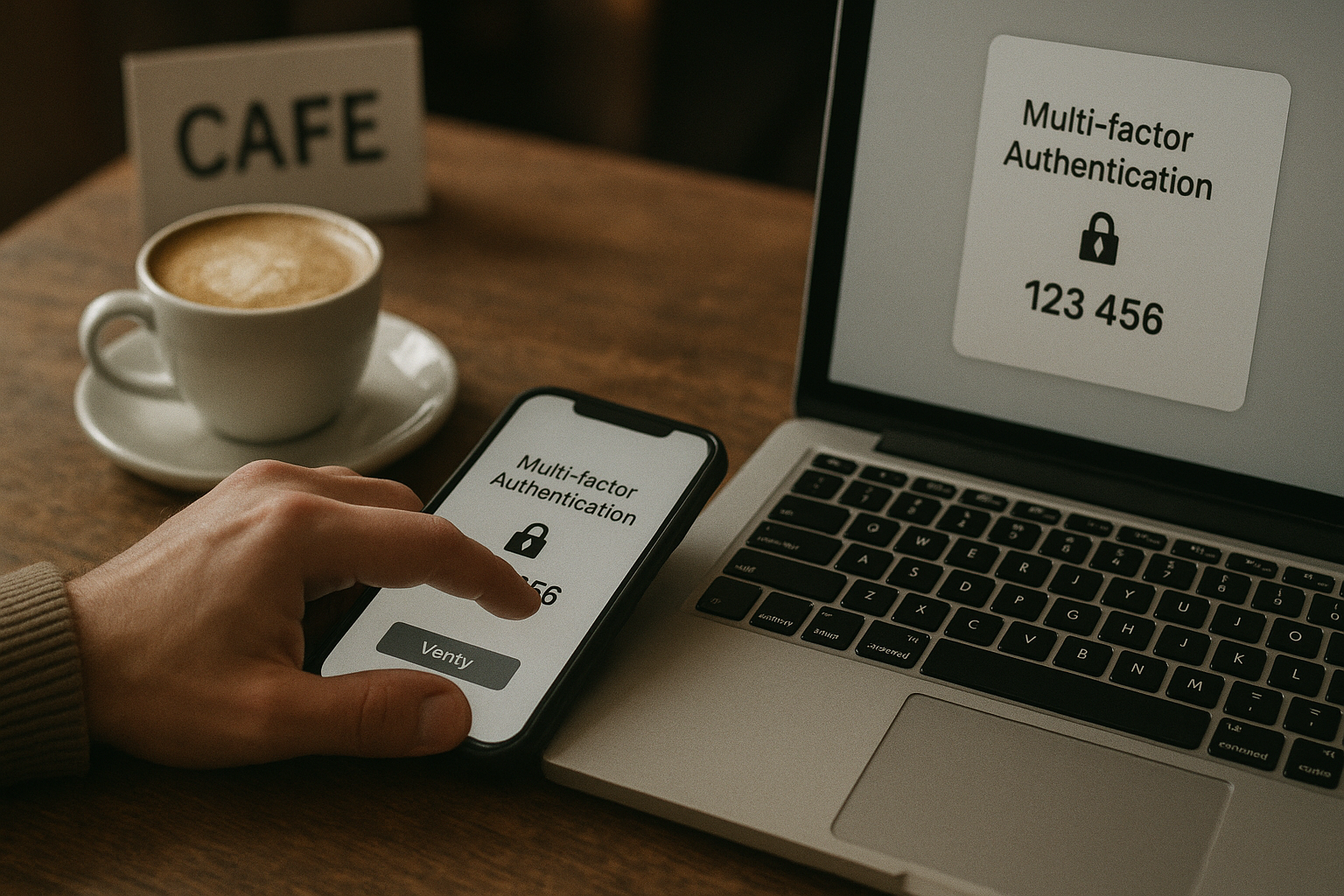
SMCCD requires multi-factor authentication (MFA) for all student accounts. Set it up on your phone through the mySMCCD Portal. Open your profile and look for security settings. The system will walk you through pairing an authenticator app or your phone number. Once active, a quick approval on your phone verifies each WebSmart login. This stops anyone else from getting in, even if they guess your password.
Will ITS ever ask for my password?
No. SMCCD’s Information Technology Services team will never request your password by email, text, or phone call. If you receive such a message, delete it and report it to the ITS help desk immediately. Never share your password with anyone—friends, family, or anyone claiming to be support staff.
Key takeaways
- WebSmart is the administrative hub for SMCCD students at College of San Mateo, Skyline College, and Cañada College
- Login through my.smccd.edu using your SMCCD email username and password
- Use it for registration, transcripts, financial aid, and tuition payments
- It is separate from Canvas, which hosts course materials and assignments
- Always enable MFA and log out from shared devices
Frequently Asked Questions
What is web smart?
WebSmart is SMCCD's online portal where students register for classes, view academic records, and manage financial aid. It is the administrative companion to the learning platform Canvas.
How does WebSMART work?
WebSmart works by authenticating through the mySMCCD Portal. Once logged in, you see a dashboard with links to registration, grades, transcripts, and account services, all pulling real-time data from the college system.
Is WebSMART still relevant?
Yes, WebSmart remains the primary tool for SMCCD enrollment and records in 2026. It has been updated with modern security like MFA and works alongside the newer mySMCCD Portal interface.
Who is eligible to use WebSMART SMCCD?
All current SMCCD students—whether at College of San Mateo, Skyline College, or Cañada College—are eligible. New students gain access after completing their application and receiving a student ID number.